
How To Redesign Your Xero
If you own a Xero with a design that is just so close to being perfect for you, but there’s a small thing or two you’d like to change - then good news! You can redesign your Xero yourself, or even commission someone else to do it!
This page will outline everything you need to know about redesigning your Xero using X-318: Luca and X-025: Ziggy as examples!
table of contents:
1. Untraited Changes
2. Further Customization
3. Redesign Reminders
4. DYE POTS
5. Adding Traits
6. Making your new design offical
7. Redesign Checklist
8. Approving your redesign
Have questions about redesigning your Xero?
Joining our Discord (18+) allows you to open a ticket in #design-tickets where you can receive feedback from Staff or share your WIPs in #myo-redesign-help so our community can chime in!
!! Please note that all redesigns are manually reviewed and are subject to the discretion of staff !!
Even when following the information below, there is a chance your redesign may be deemed unrecognizable from the original.
Untraited Changes
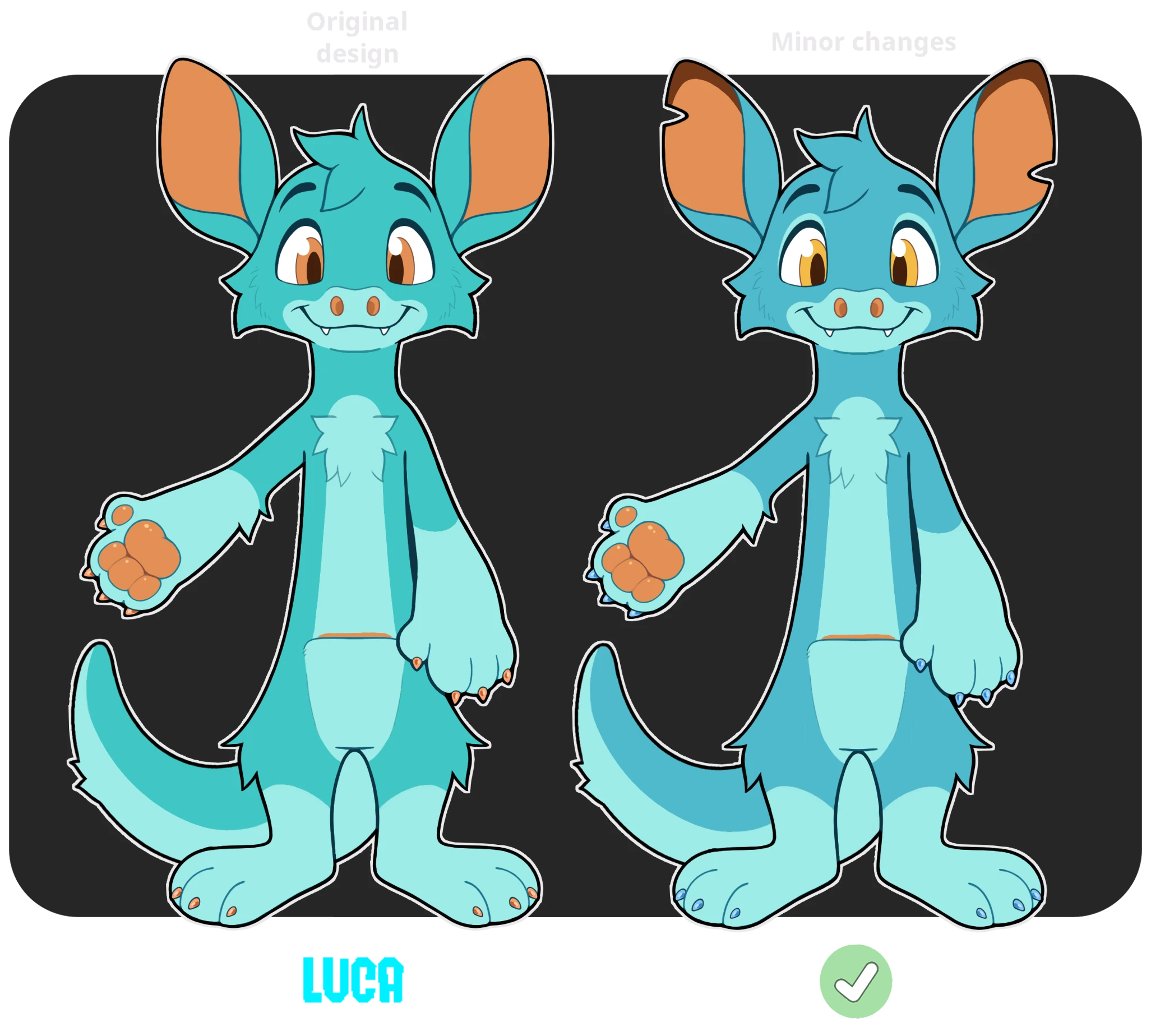
Simple design changes can be made for without trait items! Examples of simple changes are:
-
Slight hue shifting (making a teal Xero more of a blue Xero)
-
Most small additions or removals of markings
-
Changing small areas of color, like eyes or claws
-
Adding, removing, or changing the hair style
-
Adding scars, or cuts in the ears, etc.
As long as the design is still clearly recognizable as the same character, and doesn’t look like an entirely different Xero, then you should be good to go! Please keep in mind, however, that there are some color, marking, and anatomy traits that all Xeros must have!
To familiarize yourself with the basics of Xero anatomy and traits, check out the main species page here!
Further Customization
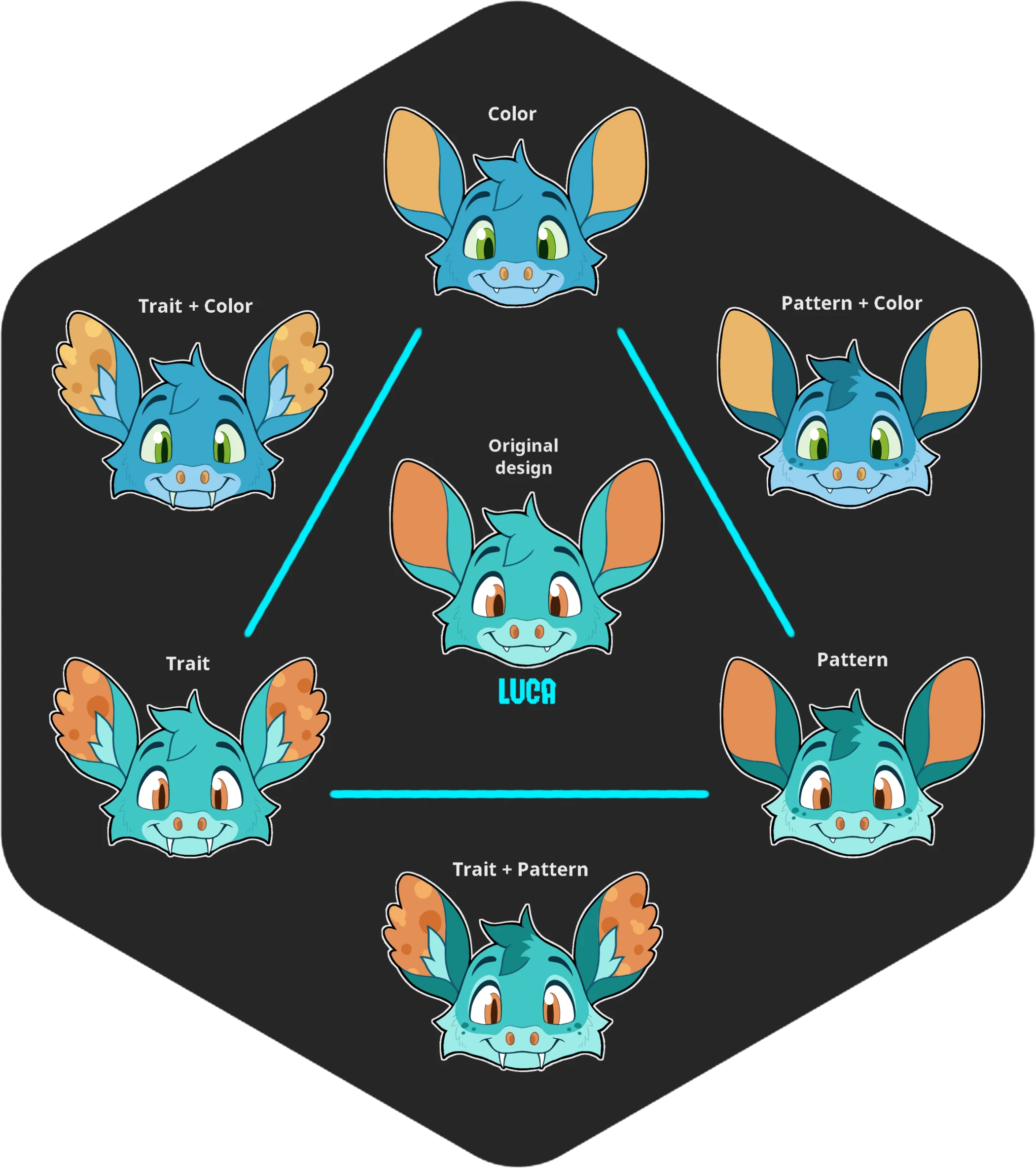
When determining if a Xero's redesign is acceptable or not, we use a 'Pick 2' system:
1. Pattern Change
2. Color Change
3. Trait Change
'Pick 2' means that you can pick 2 changes from the list. So you can do a pattern change and a color change and leave the traits largely the same, or you could do a color change and a trait change and keep the patterns largely the same, etc. But you cannot change the patterns, colors, and the traits, as that will likely result in a design that is too different from the original Xero.
Trait changes are a bit more subjective than pattern/color changes, as trait changes can be more minor and not change the appearance of the design too much. This is handled on a more case-by-case basis depending on how much the added traits change the overall look of the design.
However, the pigment mutation traits Reverse Countershading and No Countershading will count as 2 changes, since these traits will largely change how the design looks. If you wish to apply this trait, this means you must leave the rest of the design largely intact with very minimal to no changes, to ensure the design still looks similar enough to the original.
As a rule of thumb, the redesign must always be recognizable as the original Xero; contemplate if your redesign could be considered a "sibling" of the original design.
Below is an example guide; let's see how we can customize Luca from their base design!
Pick 1
Each of the above examples to the left of Luca changes ONE quality of the base design.
Luca's design is still clearly recognizable, all of these redesigns would be accepted.
Color
In the first example, Luca has slightly changed their fur and skin color as well as minor accents such as the claws and eyes. This set of changes is permissible without need for any additional traits.
Pattern
In this second example, Luca has slightly changed their fur pattern, but notably has kept all colors within the original design's range. This pattern change is permissible without need for any additional traits.
Trait(s)
In this third example, Luca has changed only their traits. They added Frilled Ears, Slit Pupils, Saber fangs, Pattenred Skin, Canis Tail and Retarctable claws. Although many traits have been added to Luca, they remain recognizable to the base design.
Pick 2
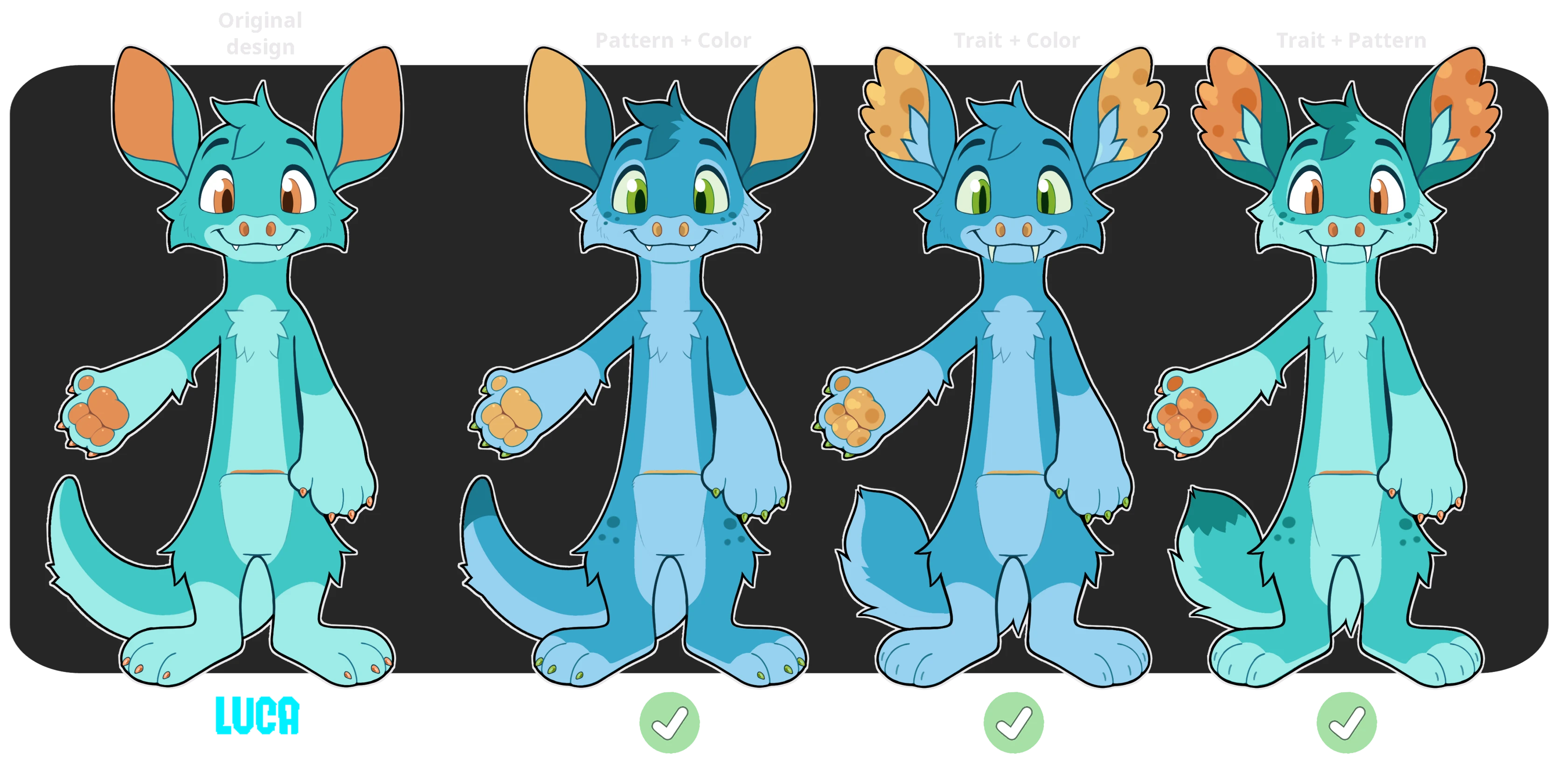
Each of the above examples to the left of Luca changes TWO qualities of the base design.
Luca is starting to look a bit different, but these redesigns would still likely be accepted.
Pattern + Color
In the first example, Luca has slightly changed their fur and skin color as well as minor accents such as the claws and eyes, in addition to their fur pattern. These changes are permissible without need for any additional traits, but any more drastic tweaks may debatably be more suited towards a MYO.
Trait + Color
In this second example, Luca has slightly changed their fur and skin color as well as minor accents such as the claws and eyes. Their traits have also changed, adding Frilled Ears, Slit Pupils, Saber fangs, Patterned Skin, Canis Tail and Retractable claws. Retaining their original patterning has kept this redesign recognizable to the original, which would likely grant it a pass from Staff!
Trait(s) + Pattern
In this third example Luca has changed their traits, adding Frilled Ears, Slit Pupils, Saber fangs, Patterned Skin, Canis Tail and Retractable claws; and has changed their patterns. Retaining the original design's color palette has kept this redesign recognizable to the original, which would likely grant it a pass from Staff!
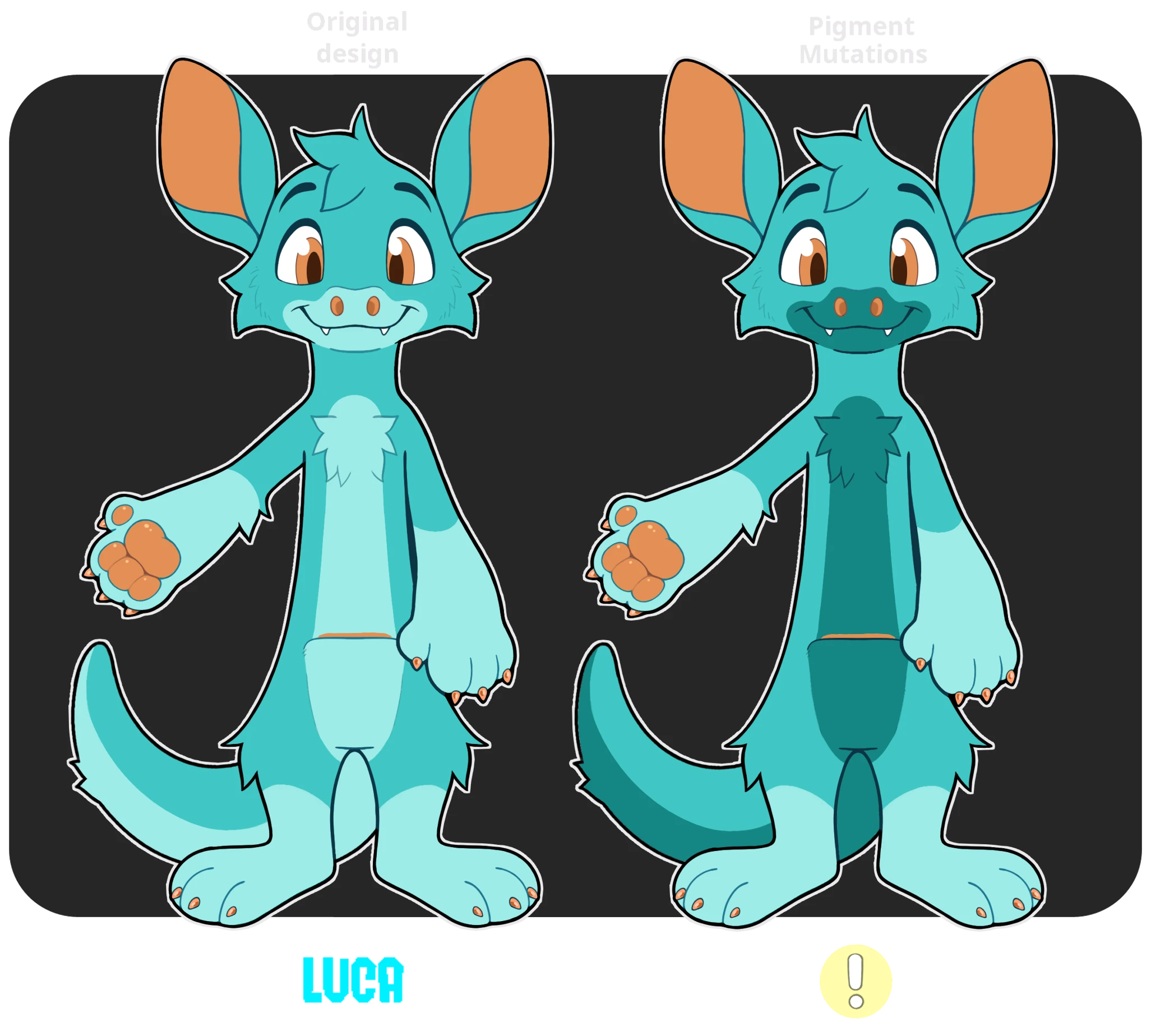
Pick 2, Continued
Some traits may change how a design looks significantly; namely, many Pigment Mutations will often count for TWO changes. In the example above, Luca has the Reverse Countershading trait applied, which gives a Xero countershading that is darker than their main coat color. Some Glitch traits can also have sweeping effects on a design, like Diaphonization. Traits like these can very quickly cause a redesign's recognizability to stray from the originals, so please use them with care.
Pick 3...?
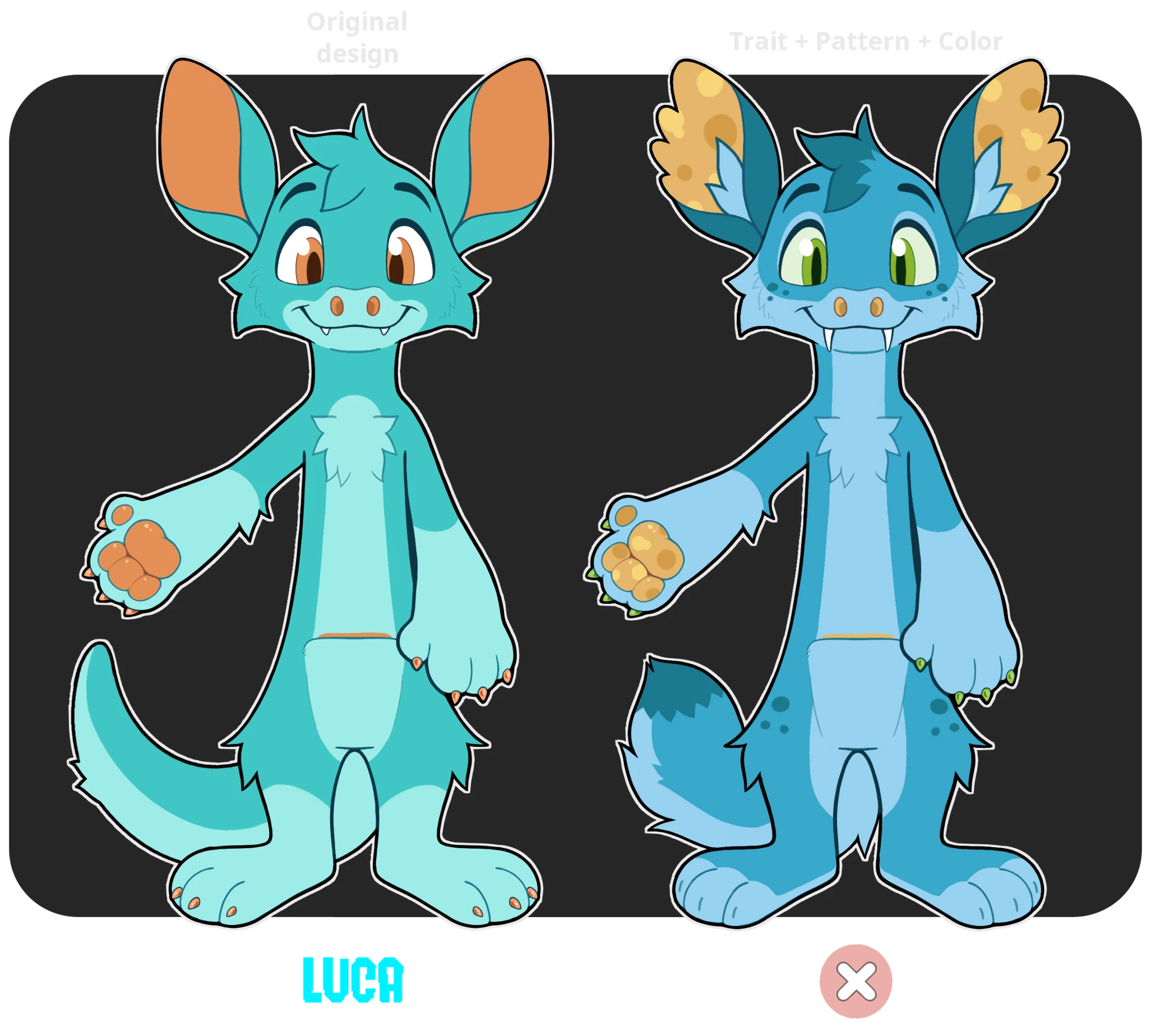
Uh-oh? Who's this? Completely changing the Colors, Patterns, and Traits of Luca has made this redesign feel like a whole new Xero. There is little in common with the original design, so this combination would be rejected. However it would be suitable for a MYO!
!! Please remember that all redesigns are manually reviewed and are subject to the discretion of staff !!
Even when following the information on this page, there is a chance your redesign may be deemed unrecognizable from the original.
Redesign Reminders
‼️ All redesigns must be based on your Xero's original Masterlist image ‼️
To find your Xero's original Masterlist image, navigate to their Masterlist page and click 'Images' under the History tab!The image with the oldest upload date will be the Xero's original image.
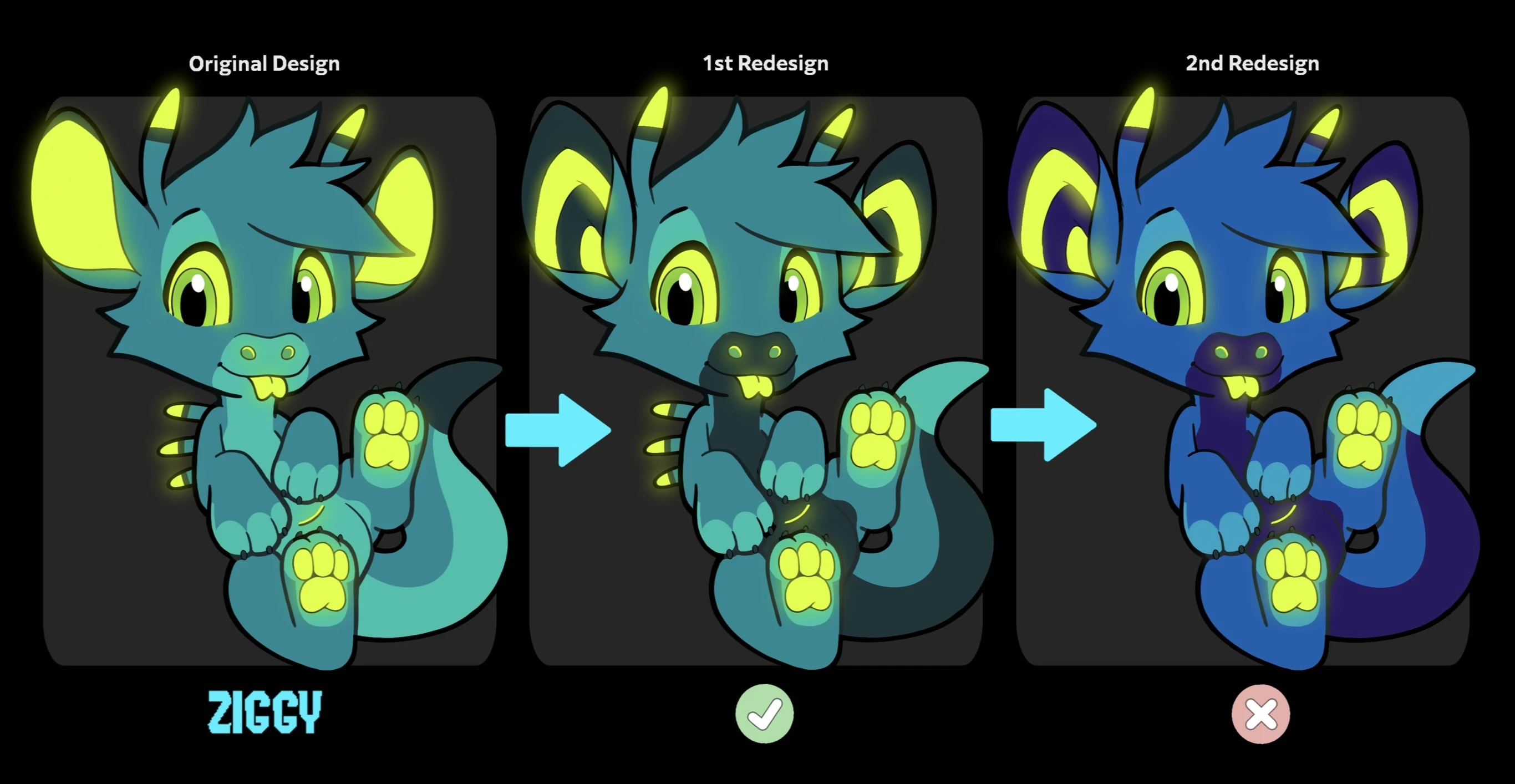
An accepted redesign will always be informed by the Xero's original design. In this example above with Ziggy, the 2nd redesign is rejected as it takes cues from the previous redesign and reimagines it. This leads to a Xero that feels far from Ziggy's original design.
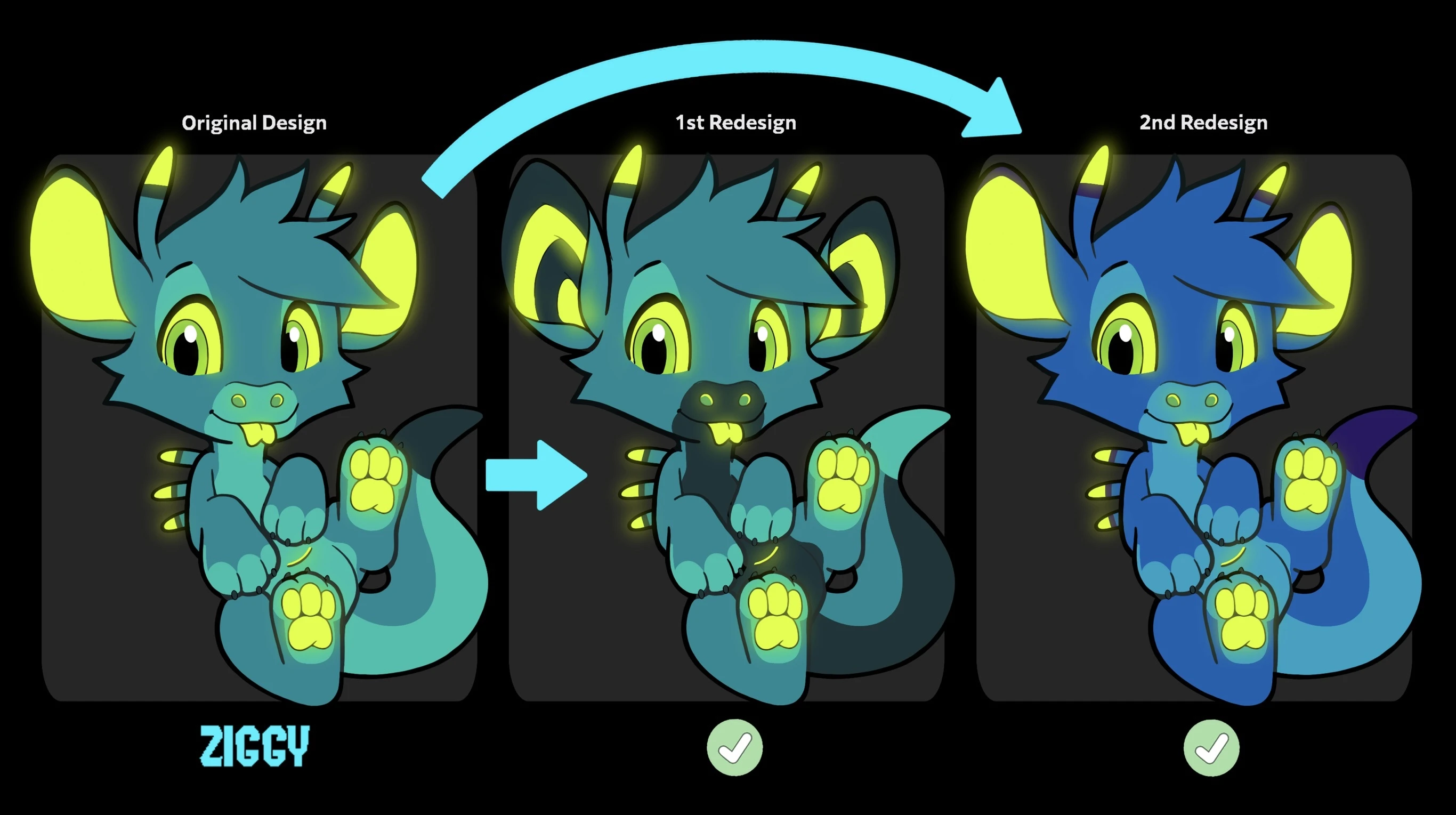
In this example, the 2nd redesign is accepted because it is informed by and reimagines Ziggy's original design. Doing so keeps the redesign recognizable as Ziggy!
when to Consider a MYO
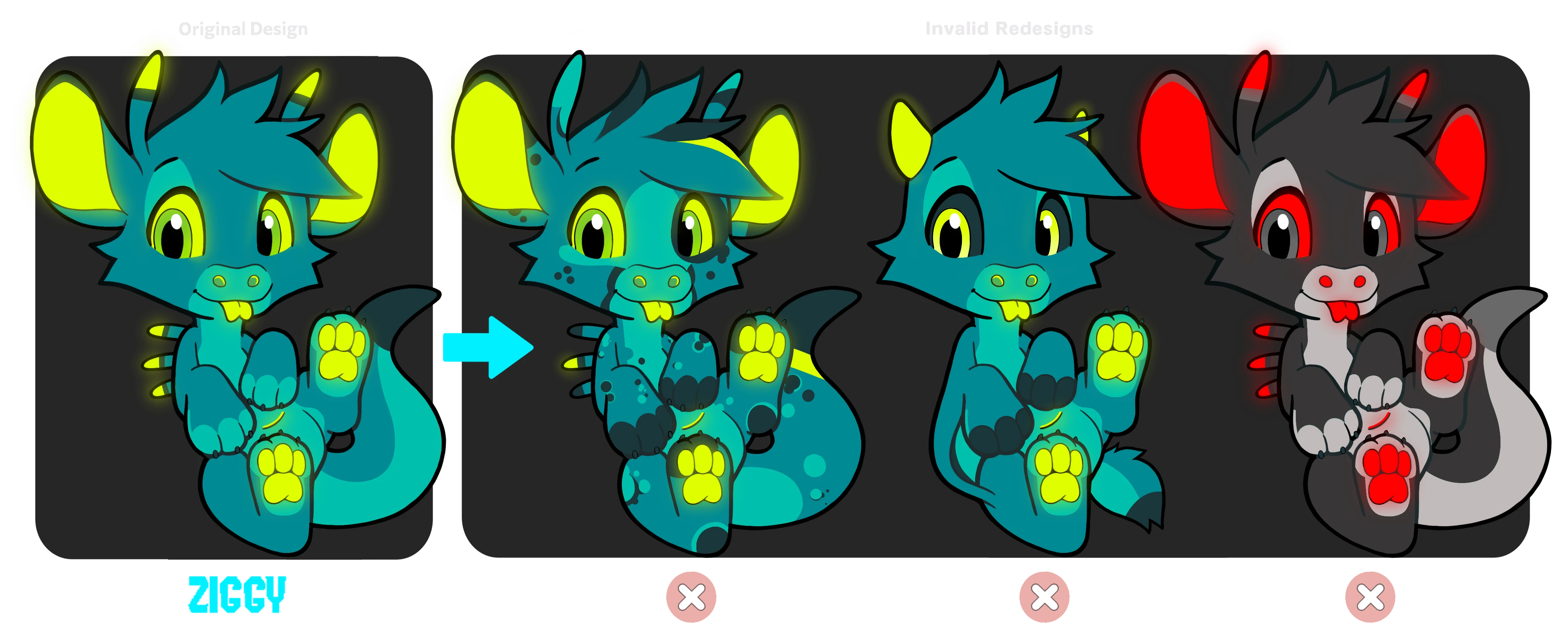
While keeping in mind the "Pick Two" rule, it is still possible that a redesign is considered too drastic of a change to be accepted.
Let's go over the above examples together to understand why they would be rejected.
First Invalid Redesign
This redesign is a pattern change, but it has added, shifted, and removed many of Ziggy's markings. Doing so has created a design that feels very far from Ziggy's original design, even if the colors and traits did not change.
Second Invalid Redesign
This redesign has severe trait changes. Doing so has created a Xero that feels very far from Ziggy's original silhouette, and has given this Xero a much different vibe. It would be rejected, as it has combined trait changes create a Xero that feels entirely different from Ziggy.
Third Invalid Redesign
This redesign focuses on a entire color change. This should be considered an entirely different character, as these color changes are not within the allowed hue shifts.
The ability to redesign your Xero should never be taken as a "free MYO slot" to remake your character into something completely unrecognizable from the initial design. If you cannot redesign your current Xero into something you are satisfied with, we recommend trading it for one you do like, or saving up for a MYO slot instead.
dye Pots
‼️ All redesigns must be based on your Xero's original Masterlist image ‼️
To find your Xero's original Masterlist image, navigate to their Masterlist page and click 'Images' under the History tab!The image with the oldest upload date will be the Xero's original image.
The Dye pots are glitch items that can help allow for more drastic redesigns that would otherwise be rejected. A glitch card MUST be applied to your Xero when submitting a redesign using these items. The intention of the Dye Pots is to allow more extreme redesigns for your Xero, but not to completely override the original design.
These can be acquired through staff sale... and something else to come?
Chroma Dye Pot
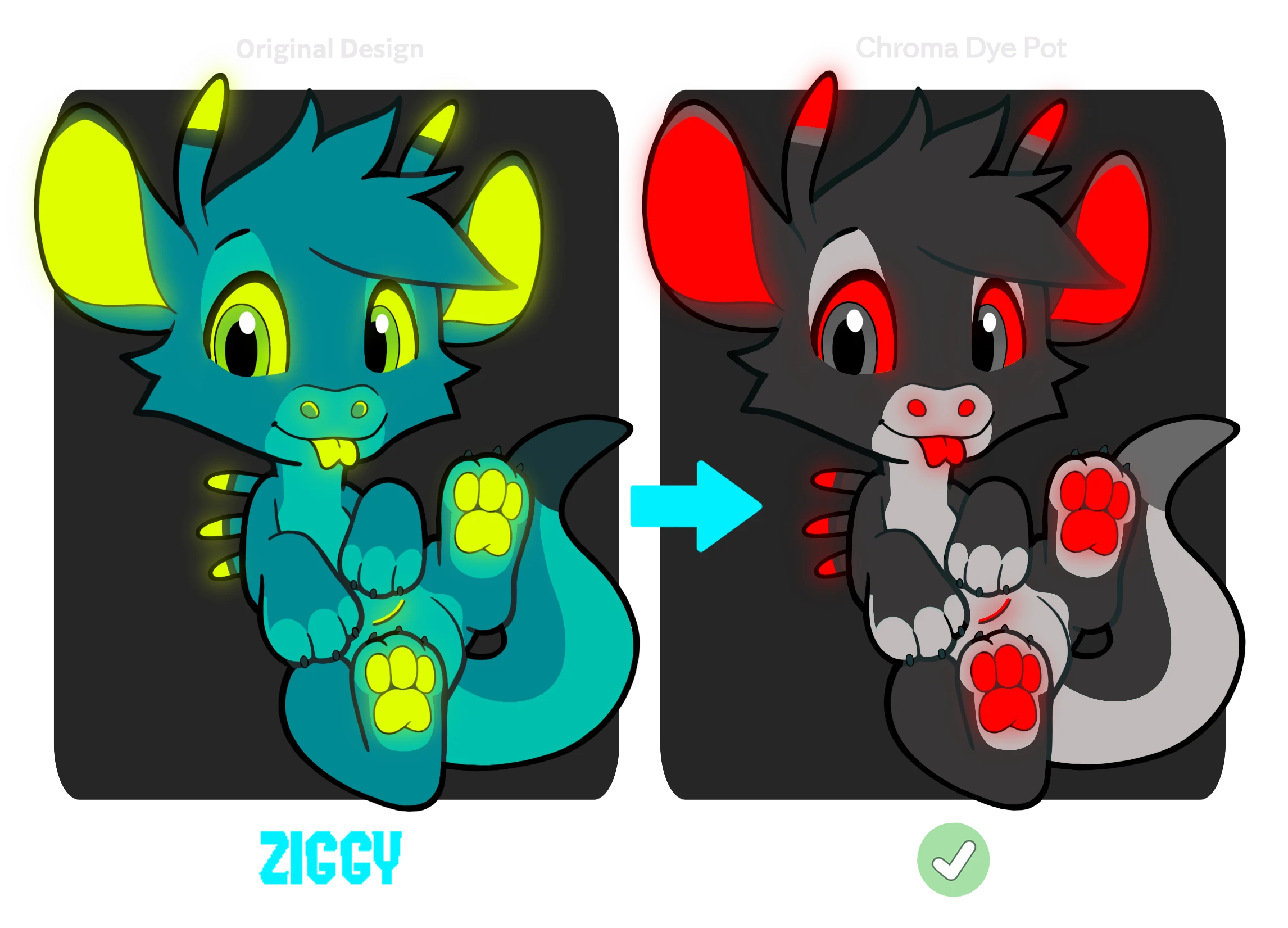
The Chroma Dye Pot allows you to drastically change the colors on your Xero. When applied, your Xero's colors may be changed without restriction*, allowing for an entirely new palette. However, the markings and traits must remain the same.
* Click here to review the limitations of the Chroma Dye Pot before use.
Morph Dye Pot
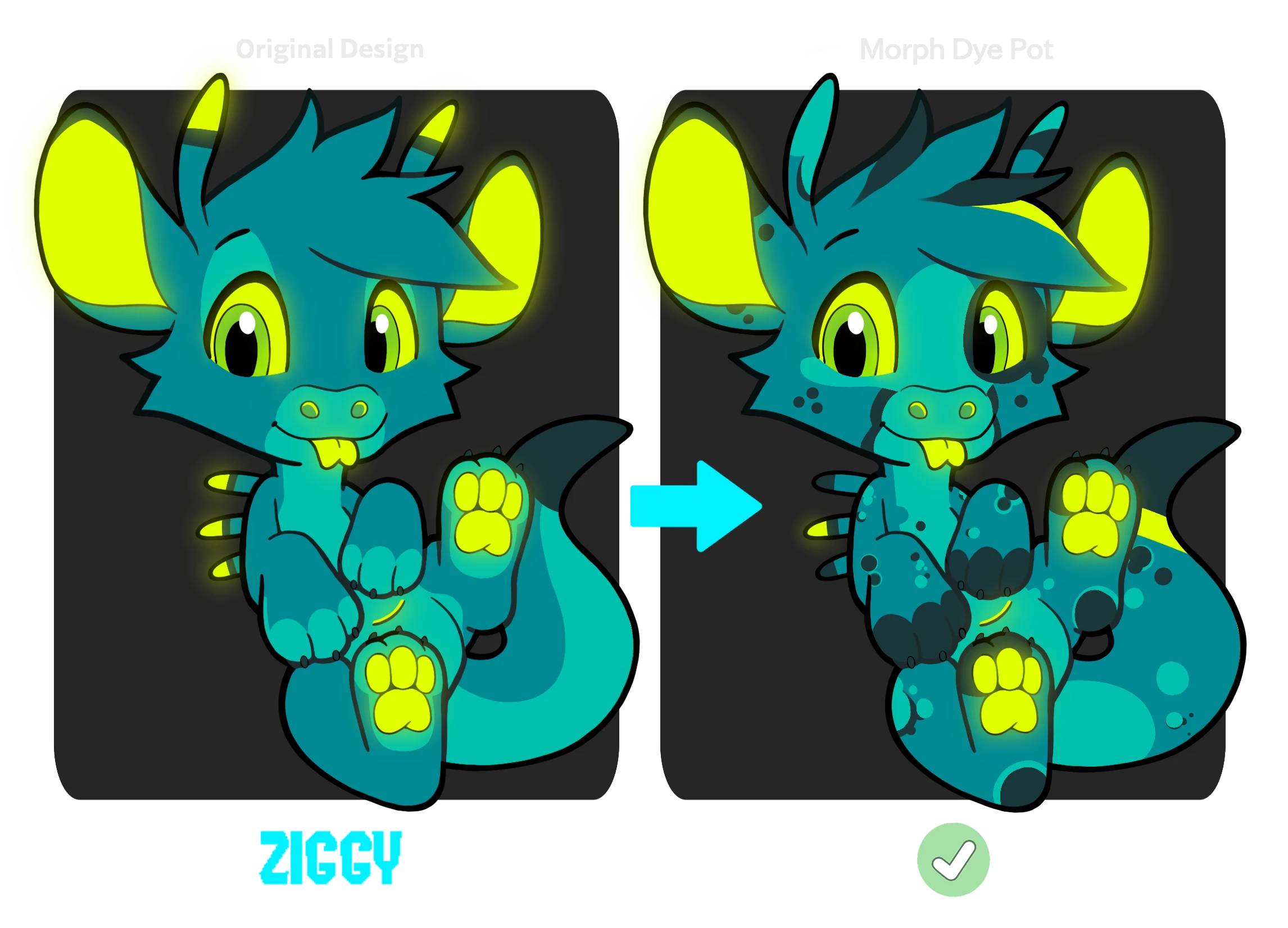
The Morph Dye Pot allows you to drastically change the markings on your Xero. When applied, your Xero's markings may be changed without restriction, allowing for an entirely new look. Keep in mind, though, that the colors and traits must remain the same.
* Click here to review the limitations of the Chroma Dye Pot before use.
All Xeros with the Morph Dye Pot applied must follow the simplicity rules and may not be a copy of another character on the Masterlist.
Important Notes
Adding traits and other alterations
 Chroma Dye Pot
While the Chroma Dye Pot has a grace clause in the instance of conflicting markings that ONE trivial marking may be removed; any further changes to the Xeros traits or markings are likely to be rejected, as these changes may be too drastic for a redesign. As always, it is recommended you either contact a member of staff or utilize the #design-tickets channel in the Discord to confirm that your redesign is possible.
 Morph Dye Pot
While the Morph Dye Pot has a grace clause in the instance of conflicting colors that ONE additional color may be added or that ONE existing color may be removed; any changes to the Xeros traits or colors are likely to be rejected, as these changes may be too drastic for a redesign. As always, it is recommended you either contact a member of staff or utilize the #design-tickets channel in the Discord to confirm that your redesign is possible.
Using both chroma and Morph dye pots
The Chroma Dye Pot and Morph Dye Pots CANNOT be present on a Xero's redesign at the same time, you must choose one or the other. You cannot add one Dye Pot then go in later on and add the other. Any future design updates must still be based on the original Xero.
reapplying a dye pot
If you decide you would like to completely change your Xero's markings or colors in the future, you must purchase a new Chroma or Morph Dye Pot to apply to your Xero. If your Xero previously had a Chroma or Morph Dye Pot applied, and the design was reverted to the original, you must still repurchase a Chroma or Morph Dye Pot to allow for reapplication of these items effects.
Effect on redesigns
The addition of the Dye Pot items does not mean designs with hue shifts and marking changes within previously acceptable range will now be rejected. The intention of these items is to allow users to redesign Xeros outside of the previously acceptible range. Additionally, the dye pots cannot be used to skirt current MYO/redesign rules or create a Xero that looks like one that already exists on the Masterlist.
effect on bound characters/"one-off" designs
This is ONLY applicable to the Morph Dye Pot. Characters that were created based off a non-Xero (often referred to as a "one-off") design and have a Morph Dye Pot applied will still be bound to that character- as the original design is still the main reference for redesigns. The logic behind this choice is that allowing the bond between the Xero and the one-off to be broken would either mean the Xero could never be redesigned if traded without the one-off, or it would need to override the original design, allowing for an unfair advantage for that particular design.
If you purchase a one-off with the exact same colors as a Xero you own, you may use a Morph Dye Pot to turn the Xero into a port of this character. This link between the one off and Morph Dyed Xero may be broken in the future if the design is reverted to the original Masterlist entry. If you elect to trade this Xero without the one-off, you must revert the design to the original before listing the Xero for trade.
The ability to redesign your Xero should never be taken as a "free MYO slot" to remake your character into something completely unrecognizable from the initial design. If you cannot redesign your current Xero into something you are satisfied with, we recommend trading it for one you do like, or saving up for a MYO slot instead.
Adding Traits
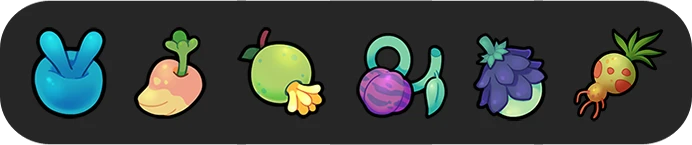
If you elect to add new traits to your Xero, you will also need the accompanying fruits. If you visit the Greenhouse, you can buy the cosmetic items needed to change your Xero's appearance! Most cosmetic items need to be purchased with Prestige; if you don't have any Prestige or don't know what it is, you can learn more about it and how to get it on our Starter Guide!
Making Your New Design Official
Once you've narrowed down what you want, its time to make your redesign official! There are a few different ways to do this, but the main thing you'll need to do is create a new image with your character's updated design! You'll need a clear, digital image of the design drawn out with a transparent background. Look at other Xeros on the Masterlist for an example of how the completed art should look. The image must be clean and show off most markings and features with little to no shading, so that all of your character's colors and patterns are easily seen. You may draw this image yourself, commission another artist for it, or color in a Free-To-Use Xero Base.
Draw your Design!
One option for your Xero's new artwork is to simply draw it yourself! Please keep in mind that it needs to be digital, clear, and important details of the design must be visible. It must also have a transparent background for the Masterlist.
If you don't draw or would prefer a pre-made option, you can color in one of our many Free-To-Use Xero Bases! You must have access to a program that can open PSD files, such as Photoshop, Clip Studio, or Procreate.
Commission An Artist!
Project XERO is proud to include a variety of talented artists in our community. If you don't want to draw your new design image yourself, feel free to seek out artists inside or outside our community to draw your new design for you!
Note: always take caution when buying from someone online. Project XERO cannot endorse any specific artist outside of our staff, nor can we help in the instance of a dispute.
❗️ YOU MAY NOT TRACE, EDIT, OR RECOLOR ANOTHER ARTIST'S WORK WITHOUT PERMISSION ❗️
Redesign Checklist
Before submitting your redesign, check the list below to help ensure your design doesn't need to be sent back for edits!
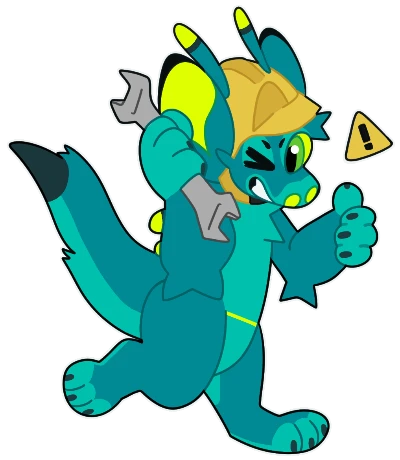
Feel free to use the below art as a guide or base to get started!
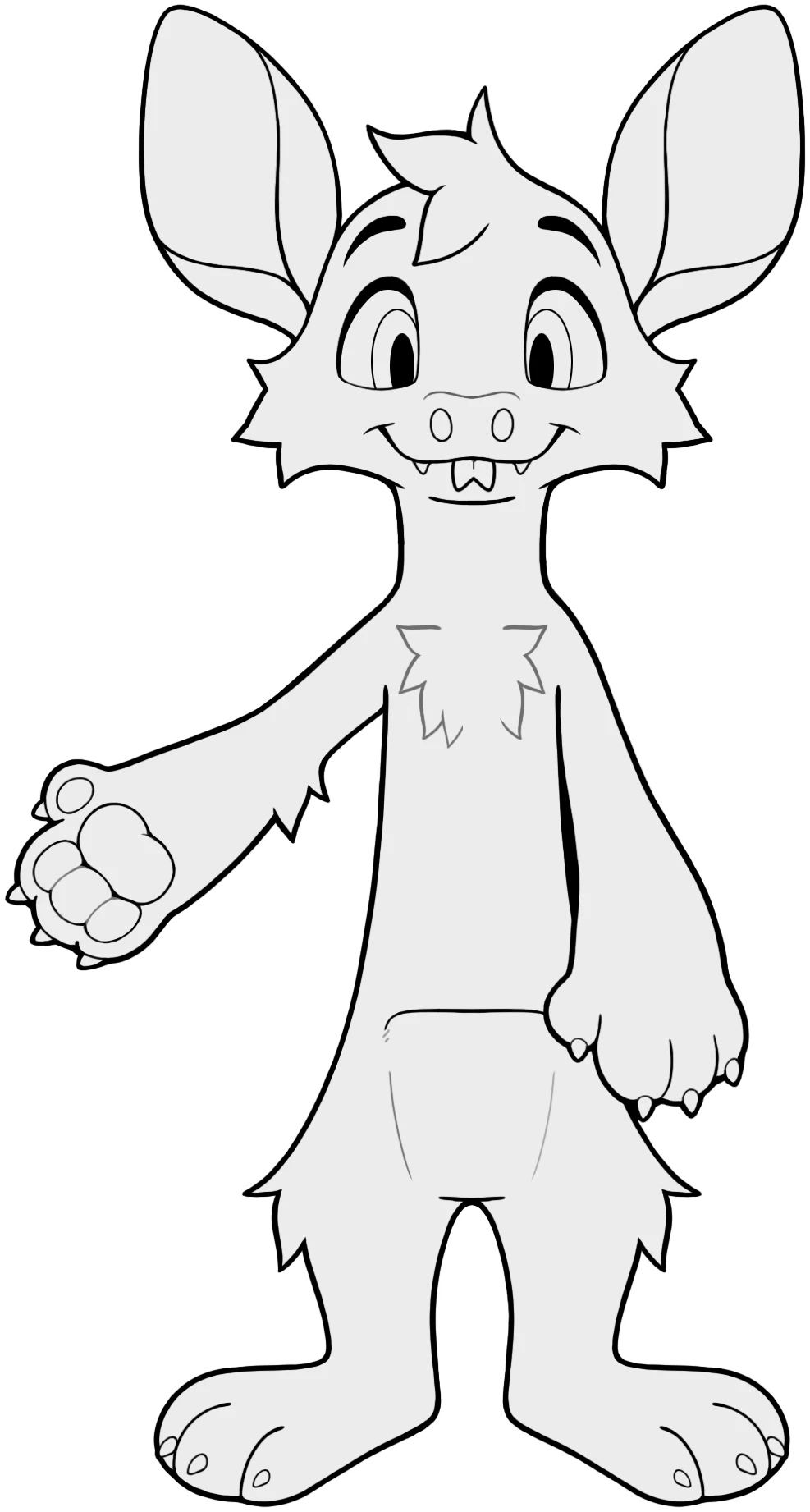
✅ The image is cleanly colored with a transparent background
✅ The image is mostly flat color with little to no shading
✅ The Xero's ears are on the sides of its head like a deer, not on top like a cat
✅ The Xero has large circular nostrils like a pig
✅ The Xero has a forked tongue
✅ The Xero has a pocket-like pouch on the lower belly
✅ The Xero has 3 fingers and a thumb on the hands
✅ The Xero has 3 toes on the feet
✅ Claws, claw slits, or hooves, depending on traits, are visible on all 4 paws
✅ The Xero's arms have narrow shoulders that taper to thick forearms and wide paws (unless it is a Savannah Xero with the long limb trait)
✅ The Xero's legs are short and close to the ground, with plantigrade feet (not raised heels) unless it is a Savannah Xero with the long limb trait
✅ The Xero has relatively short fur throughout the body, though a few longer tufts are allowed on the cheeks, elbows, knees, and chest. Excessive fluff requires the tundra fur trait
Need help with your Xero?
Joining our Discord (18+) allows you to open a ticket in #design-tickets where you can receive feedback from Staff or share your WIPs in #myo-redesign-help so our community can chime in!
Approving your Redesign
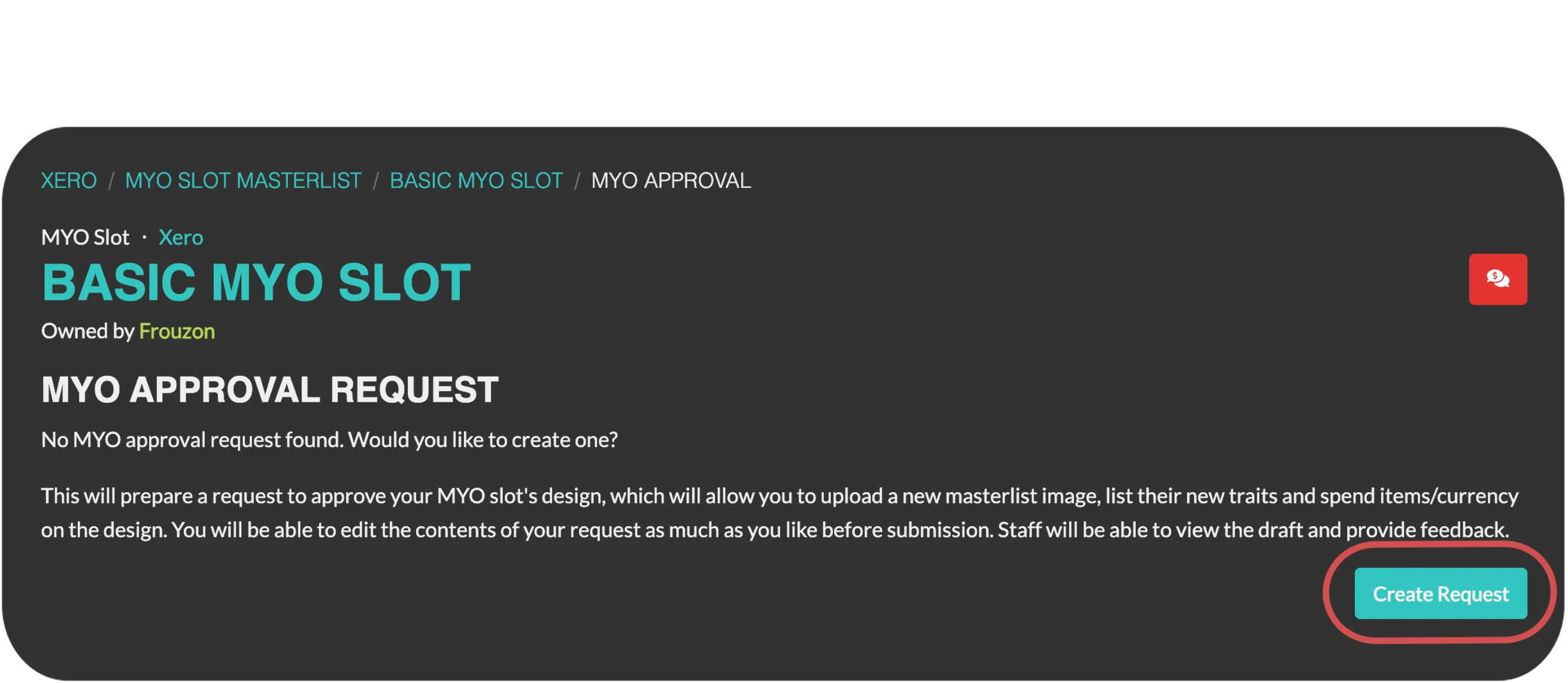
To upload your new design to the Masterlist and have the redesign approved, you can go to your Xero’s profile and hit ‘Update Design’ under their settings and create a design request. You’ll find the settings on the far left of the screen. If you’re on mobile, there will be a small menu button at the top left of the screen that you can click to open the drop down menu.
Once you’ve clicked ‘Update Design’ you can click ‘Create Request’ to start your redesign request!
COMMENTS
The first step is the 'Comments' tab, but this can be ignored unless you have something special to note that Staff needs to be aware of. Click 'Save' to move on to the next tab!
MASTERLIST IMAGE
Head to the 'Masterlist Image' tab and use the 'Choose File' button to submit the image of your character. Use the image cropper tool (Click and drag to move the image) after uploading your image to crop it for the Masterlist, as you like.
-
Underneath your image is a place for your designer and artist’s usernames. If you were the designer/artist: put your username in both columns! Were there two designers? Use the “+” next to the designer space to add a second designer.
-
Leave the Designer/Artist URL blank if the designer or artist has a aluriza.org account. If they do NOT have one, put their social media URL into the Designer/Artist URL and leave the first box blank.
-
If you elect to use a custom thumbnail image instead of the image cropper tool, please be sure to resize it to 200x200px! This can be done in most photo editing programs.
ADD-ONS
If you’re adding an item to your Xero for their redesign (such as adding a new trait!) you can go to the ‘Add-Ons’ section and select the corresponding item from your inventory you’d like to add. If you are not sure what items you need for your traits, reading about them on the trait page will tell you which item is required.
TRAITS
Don't forget to actually add the new trait to your Xero in the ‘Traits’ section so that its actually listed as one of their new traits on their Masterlist entry! For example, if you used a Kara Berry click the 'Add Trait Button' and search for the “Tufted Ears” trait in the box that pops up. Continue adding traits for every item used. If you're not adding any new traits for your Xero's redesign, you can just mark these sections as complete without adding items or traits.
STATUS
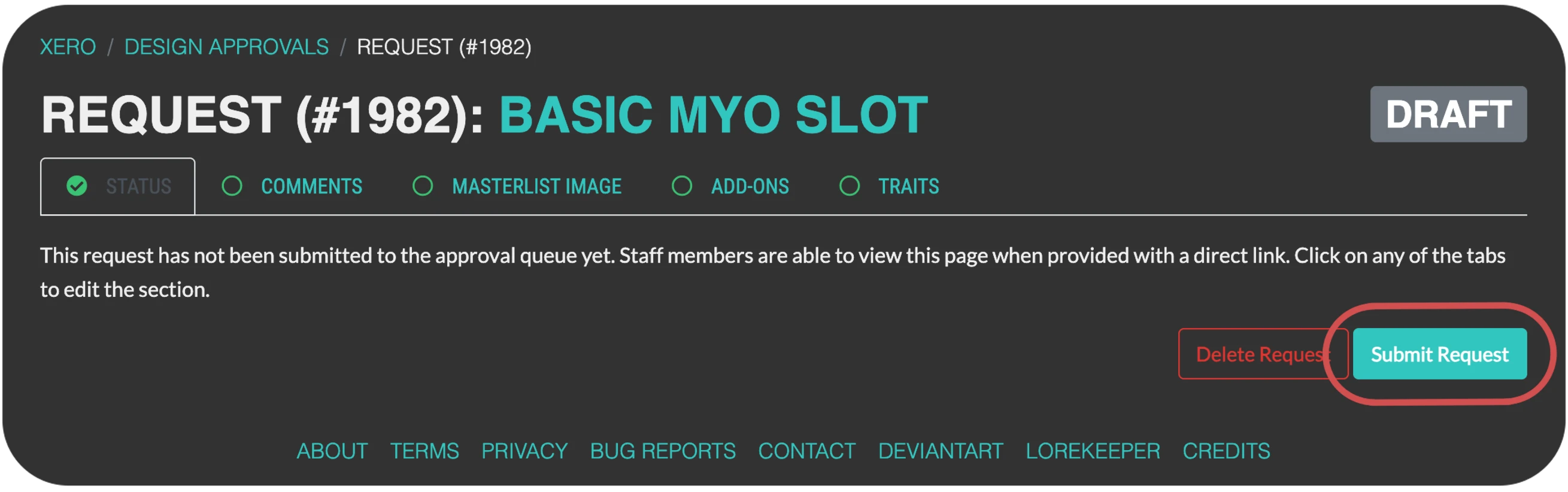
Once you’re all done, go back to the ‘Status’ tab you started on and hit ‘Submit Request’! Now your redesign will be up for review from the staff. If your redesign is accepted, their Masterlist entry will be updated with the new image and design! If your redesign is not accepted, you’ll be notified that the redesign was rejected and why. Make the changes requested and you can resubmit your design!
Once approved, your Xero should have a snazzy new redesign that's been accepted and approved, shown on the Masterlist for all to admire!
If you have any questions, don't be afraid to reach out to the staff team on the Project Xero Discord in the #design-tickets channel!